Synterial Studio – AI Image & Video Generator in One Workspace
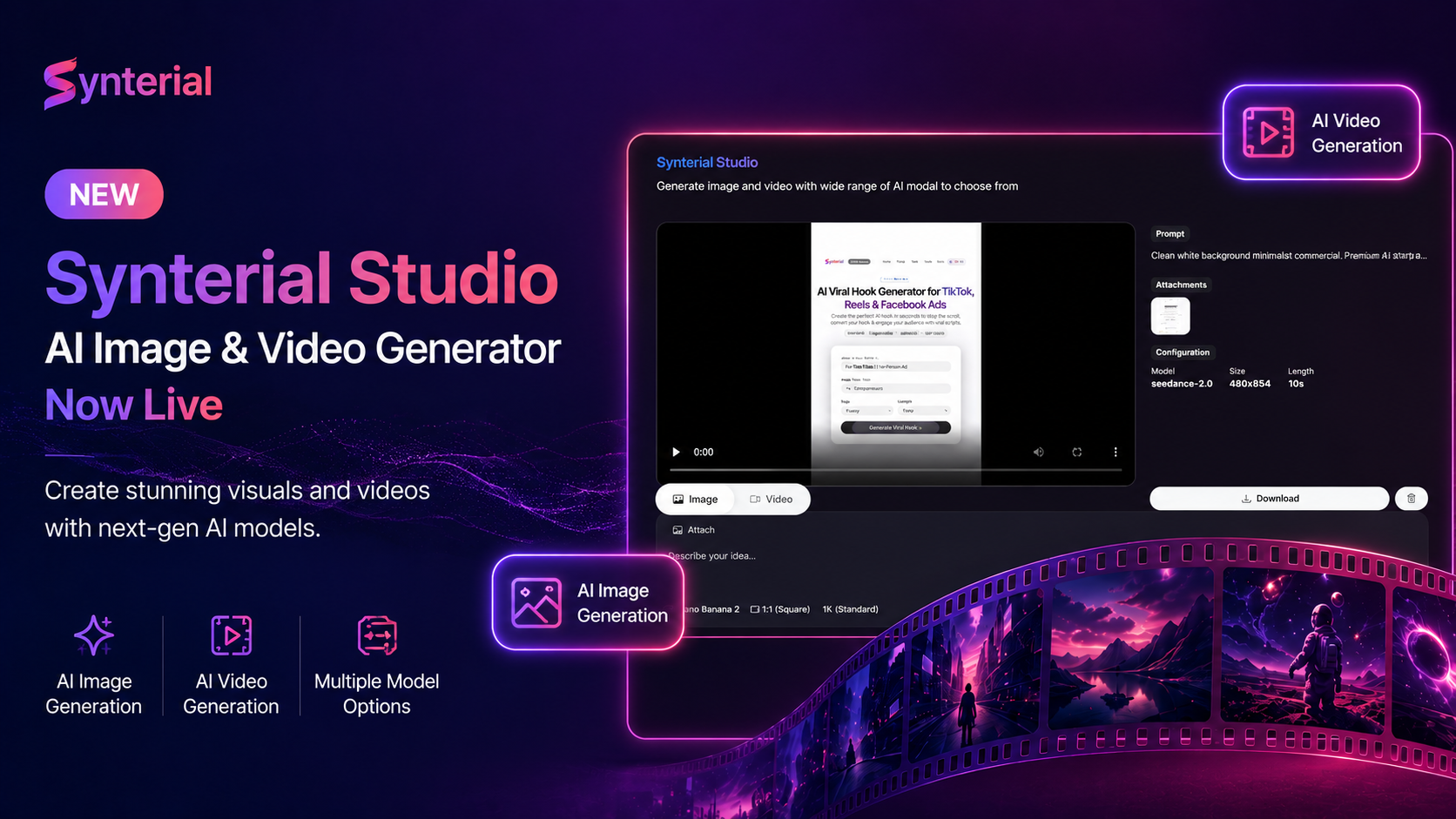
Introducing Synterial Studio
We’ve officially merged our AI Image Generator and AI Video Generator into one powerful creative workspace: Synterial Studio.
Instead of switching between multiple tools, you can now generate AI images and videos from a single interface designed for creators, marketers, designers, and brands.
Whether you want to create cinematic videos, social media visuals, concept art, product ads, or marketing assets, Synterial Studio gives you access to multiple leading AI models in one streamlined workflow.
Why We Combined Everything Into Studio
Creative workflows are evolving fast. Most creators no longer work with only images or only videos.
A typical workflow today looks like this:
- Generate an image concept
- Refine the visual style
- Use the image as a reference
- Turn it into an AI-generated video
- Export and publish content
Synterial Studio was built to make this entire process seamless.
Now you can:
- Generate AI images
- Generate AI videos
- Upload reference images
- Reuse generated visuals as attachments
- Switch between image and video modes instantly
- Access multiple AI models from one dashboard
Everything now happens inside /studio.
AI Models Available in Synterial Studio
Image Generation Models
Nano Banana 2
Fast AI image generation optimized for creative concepts, marketing visuals, and rapid ideation.
ChatGPT Image 2
High-quality AI image generation designed for detailed visuals, cinematic scenes, and polished outputs.
Video Generation Models
Veo 3.1 Fast
Generate AI videos quickly with optimized rendering speed.
Veo 3.1 Pro
Higher-quality cinematic AI video generation with improved motion and scene consistency.
Seedance 2.0
Flexible AI video generation supporting multiple aspect ratios and longer durations.
Kling Video 3.0 Pro
Advanced cinematic AI video generation with enhanced realism and motion quality.
How to Use Synterial Studio
Step 1 — Open Studio
Go to /studio on Synterial.
You’ll see a unified workspace where you can switch between:
- Image Mode
- Video Mode
Step 2 — Choose Your Generation Mode
At the bottom of the workspace, select:
- Image → for AI image generation
- Video → for AI video generation
The interface automatically updates based on your selected mode.
Step 3 — Enter Your Prompt
Describe what you want to create inside the prompt box.
Example prompts:
AI Image Prompt
A futuristic cyberpunk city at night with neon reflections and cinematic lighting
AI Video Prompt
A slow cinematic drone shot flying through a futuristic cyberpunk city during heavy rain
The more detailed your prompt is, the better the results.
How to Upload Reference Images
Synterial Studio supports:
- Drag and drop uploads
- Clipboard paste
- File attachments
You can upload:
- Inspiration images
- Product photos
- Character references
- Scene references
- Style references
Uploaded images can be reused for both image and video generation.
How to Generate AI Images
1. Switch to Image Mode
Click the Image tab.
2. Choose an AI Model
Select:
- Nano Banana 2
- ChatGPT Image 2
3. Select Aspect Ratio
Available ratios include:
- 1:1 Square
- 16:9 Landscape
- 9:16 Portrait
4. Select Quality
Choose:
- 1K Standard
- 2K Enhanced
- 4K Ultra
5. Click Generate
Your AI image will appear inside the project history section once generation is complete.
You can:
- Download the image
- Reattach it for future generations
- Use it as a video reference
How to Generate AI Videos
1. Switch to Video Mode
Click the Video tab.
2. Choose a Video Model
Available options include:
- Veo 3.1 Fast
- Veo 3.1 Pro
- Seedance 2.0
- Kling Video 3.0 Pro
3. Choose Video Resolution
Depending on the model, you can select:
- 1280×720
- 720×1280
- 1024×1024
- Additional cinematic resolutions
4. Select Video Duration
Supported durations range from:
- 3 seconds
- 4 seconds
- 6 seconds
- 8 seconds
- Up to 15 seconds on supported models
5. Optional: Enable First & Last Frame Mode
This feature helps create smoother transitions between starting and ending frames for AI video generation.
6. Generate Video
Click the generate button and wait for rendering.
Video generation may take longer depending on the selected model and duration.
Built for Creators & Brands
Synterial Studio is designed for:
- Content creators
- Influencers
- Digital marketers
- Creative agencies
- Social media teams
- E-commerce brands
- Designers
- Filmmakers
The goal is simple:
Create high-quality AI content faster.
Key Features of Synterial Studio
Unified Creative Workspace
Generate images and videos from one interface.
Multi-Model Support
Access multiple AI providers without switching platforms.
Attachment Workflow
Reuse generated images as references instantly.
Fast Creative Iteration
Test multiple ideas quickly.
Optimized for Social Content
Generate vertical, square, and landscape content easily.
Start Creating With Synterial Studio
Synterial Studio replaces fragmented workflows with one centralized AI creative environment.
If you previously used our Image Generator or Video Generator pages, everything is now available directly inside Studio.
Start generating AI-powered content today with Synterial Studio.